In order to configure your email on Outlook( Imap) after the Cloud migration to cPanel is completed please follow the below steps:
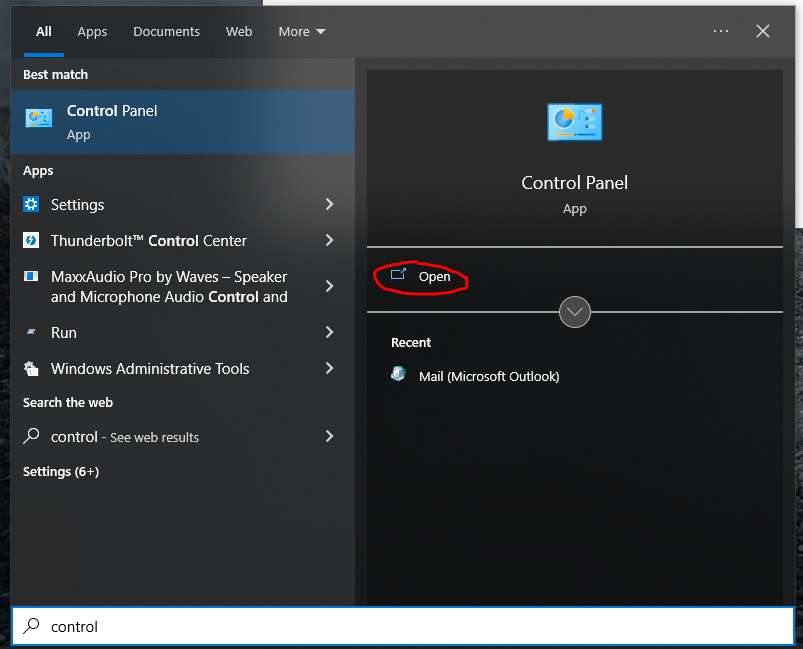
- Select Windows logo on your keyboard and look for control panel
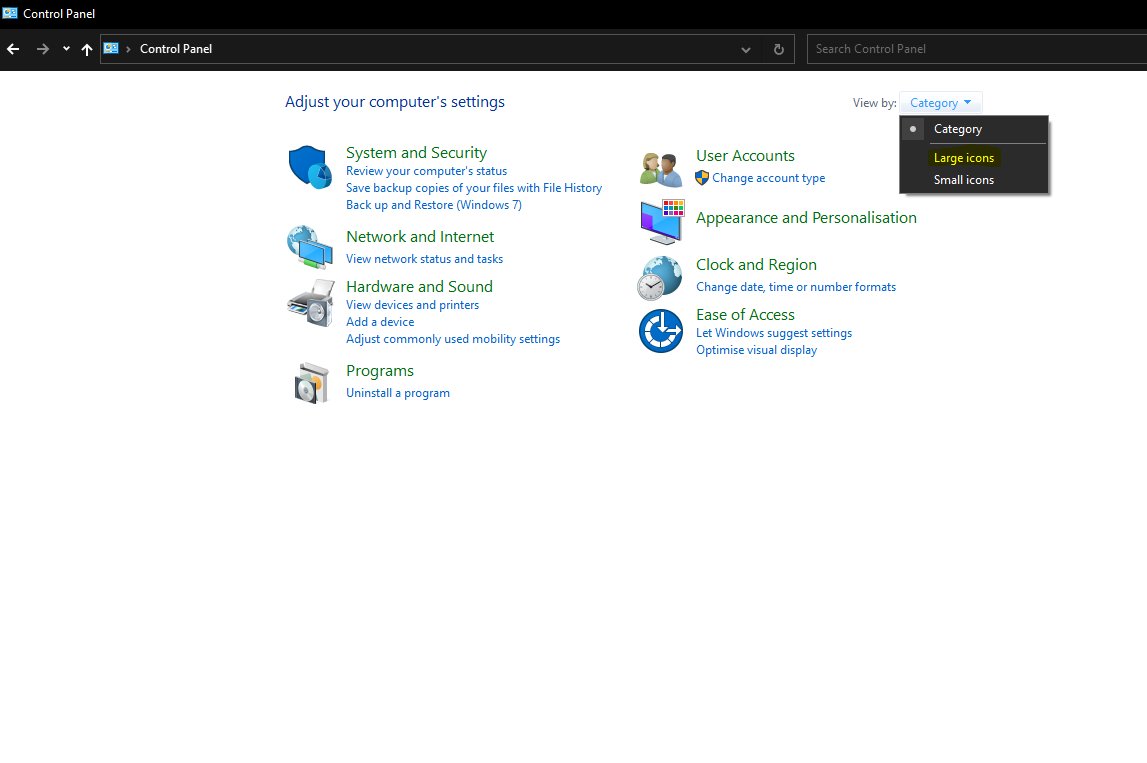
- In the new window, Switch the Category setting to Large Icons
- Select Mail(Microsoft Outlook)

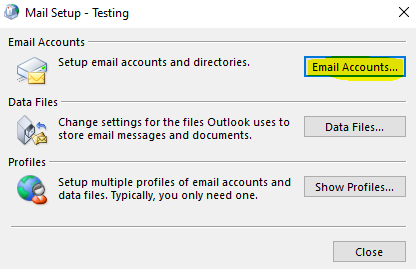
- In the new window, select Email Accounts
- In the new Account Settings window, select Change and select your email account

- Fill up the fields as below in the POP and IMAP Account Settings window and then select Next
Incoming mail server : mail.yourdomainname.com
Outgoing Mail Server(SMTP) : mail.yourdomainname.com

- On the new Internet email Settings window, select Outgoing Server, check the box as seen in the screenshot below
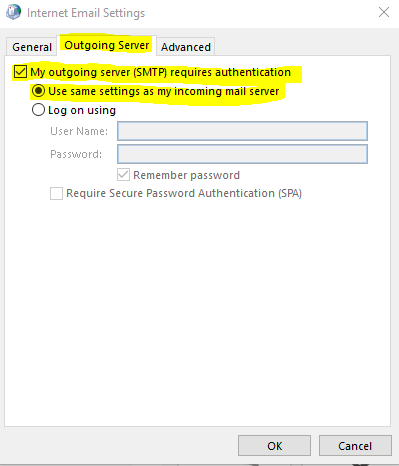
- Select Advanced and fill the IMAP and SMTP fields and select SSL/TLS and select OK

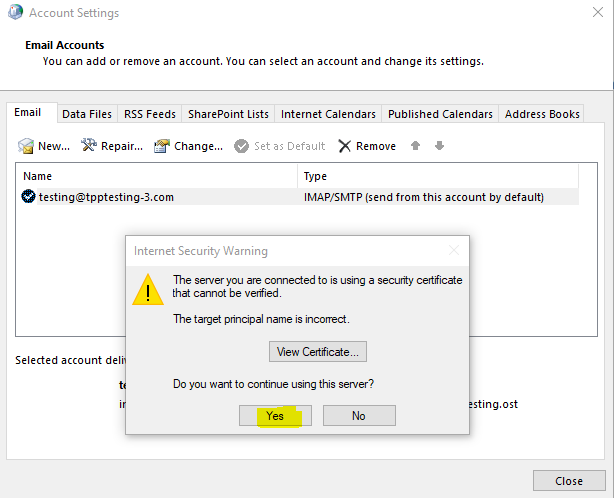
- Select Yes on the Internet Security Warning window